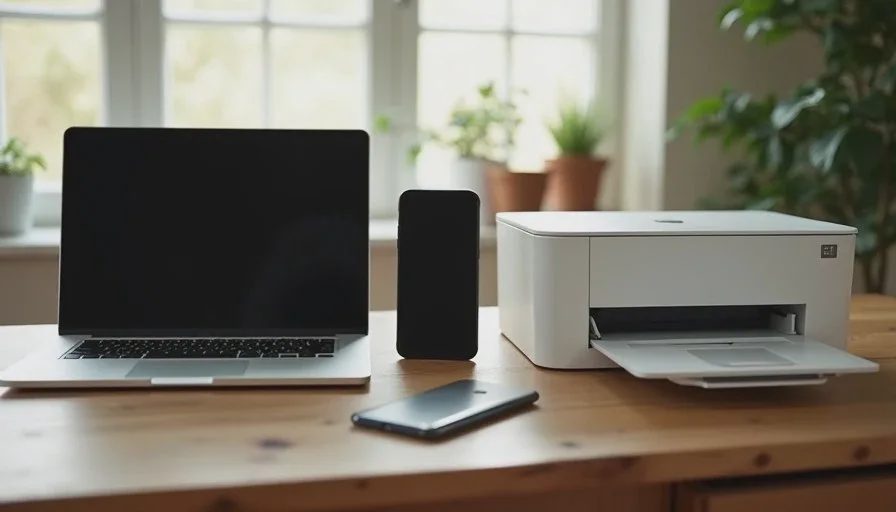
Most American families do not live inside a single tech ecosystem. They live in mixed-device households where an iPhone sits next to an Android phone, a Windows laptop shares the table with a school Chromebook, and one printer is expected to serve everyone. This post describes how that reality works in my own house and the practical habits that keep the friction manageable.
I am Eric Holt. Our Greensboro household currently includes Windows laptops, iPhones, an iPad, Sarah’s Android phone, school Chromebooks, an HP printer, Xfinity internet, and a modest UniFi network. We are not trying to force every device into one brand. We are trying to make the devices we already own work together well enough that homework, work, and everyday printing do not become evening projects.
The goal of this guide is not a perfect smart home. The goal is a connected household that stays boring enough to maintain.
The Real Starting Point: Accept the Mix
Many online guides begin by recommending that a family pick one ecosystem and migrate everything. That advice is clean on paper and rarely matches real life. Children receive school Chromebooks. One parent prefers Android. The other prefers iPhone. A work laptop arrives with Windows. The printer was bought on sale three years ago and still works.
Fighting the mix usually costs more time and money than accepting it. The systems that last in mixed-device households focus on three shared layers instead of identical devices:
A network that treats every device reasonably fairly.
A small set of shared services (password manager, photo library, calendar) that work across platforms.
Clear ownership of the one or two devices that cause the most repeated trouble—usually the printer and the Wi-Fi.
Once those three layers are stable, the individual brands matter less.

How Our Mixed-Device Home Is Actually Organized
Network Layer
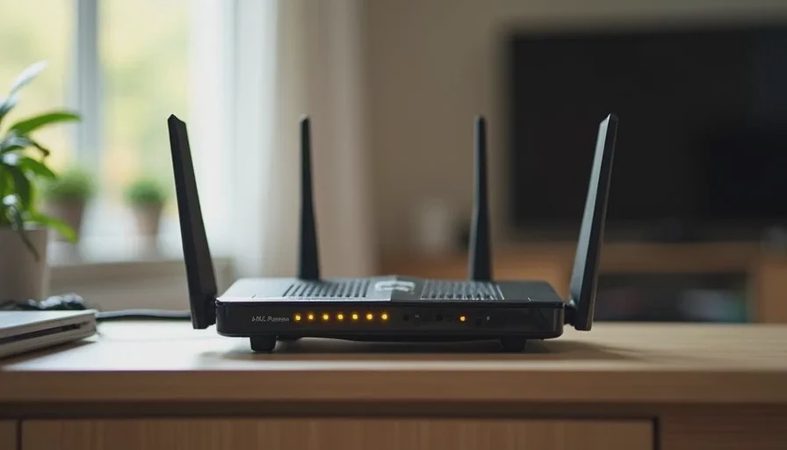
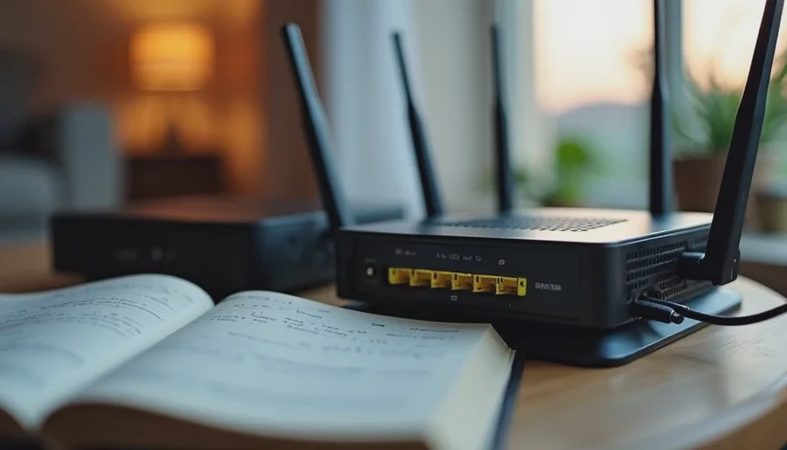
We use a simple UniFi setup with a single primary Wi-Fi network for trusted family devices and a separate guest network for visitors and school Chromebooks when needed. The guest network keeps school devices from seeing the home printer and shared folders by default. That single separation removes a surprising amount of accidental interference.
Xfinity provides the internet connection. The UniFi gear sits behind it and handles the internal traffic. We do not run complicated VLANs or parental-control packages that require constant rule updates. The network’s job is to stay up and give every device a fair chance at bandwidth.
Shared Services Layer
Three services matter more than the individual phones and laptops:
A family password manager that works on iOS, Android, Windows, and the web.
Google Photos and iCloud Photos running side by side. We accept some duplicates rather than force every photo into one cloud.
A shared family calendar that both adults and the older child can see.
These services travel with the people, not with the devices. When a phone is replaced or a laptop is retired, the accounts and the data remain.
The Printer Reality
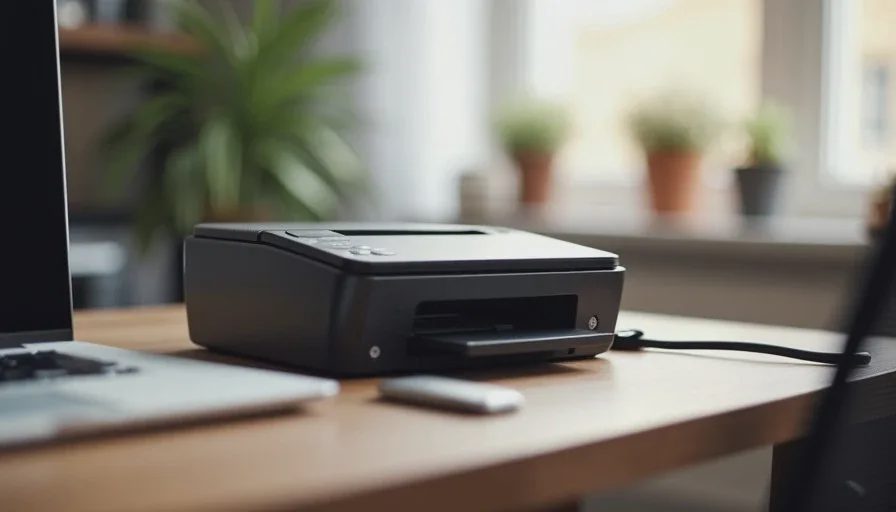
We have one HP printer. It is connected by both Wi-Fi and a USB cable to one of the Windows laptops as a fallback. Most of the time it works over the network. When it does not, the USB cable still exists. That dual path has saved more evenings than any driver update.
School Chromebooks print through the school’s own system or by sharing a PDF to a parent’s phone or laptop. We do not try to make the Chromebooks full citizens of the home printer. That decision alone eliminated a recurring source of frustration.
Time, Cost, Difficulty, and Risk
Time: The initial network and printer setup took one focused Saturday. Ongoing maintenance is roughly ten to fifteen minutes a month—mostly checking that the printer still appears on the network and that the guest Wi-Fi password has not been forgotten.
Cost: We already owned the devices. The network hardware was a one-time purchase. No monthly “whole-home” management subscription is required.
Difficulty: Suitable for any adult who can log into a router admin page and follow a manufacturer’s printer setup guide. No programming or command-line work is involved.
Risk: The main risk is adding more special-purpose devices (extra mesh nodes, extra smart plugs, extra parental-control boxes) until the system becomes harder to understand than the original problem.
Who in the household can maintain it? I handle the network and printer firmware. Sarah knows how to switch the printer to the USB fallback and how to move a Chromebook onto the guest network. That division is enough for ordinary weeks.
Practical Habits That Keep the Mix Working
1. Name Devices Clearly
Every phone, laptop, and tablet has a plain name that includes the owner and the type: “Sarah-Android,” “Emma-Chromebook,” “Eric-Windows.” When the printer or the router list shows twenty devices, clear names save time.
2. Keep One Fallback Path for the Printer
Network printing is convenient. USB printing is reliable. We keep both. When a new laptop arrives, the first setup step is confirming that the USB cable still works before any network driver is installed.
3. Treat School Chromebooks as Guests
Chromebooks come with school management software and school accounts. Trying to make them full members of the home network often creates more policy conflicts than benefits. The guest network gives them internet access without giving them access to the home printer or shared folders.
4. Update on a Schedule, Not on Surprise Notifications
Phones and laptops receive updates when we choose a quiet evening, not the moment the notification appears. This reduces the chance that an update breaks printing or Wi-Fi right before a homework deadline.
5. Write Down the Two Most Common Fixes
On a single sheet of paper in the kitchen drawer:
How to restart the router and the printer.
How to switch the printer to the USB cable.
Those two procedures solve the majority of “it suddenly stopped working” evenings.
Alternative Approaches When Your Mix Is Different
Some households are almost entirely Apple or almost entirely Android. In those cases the shared-services layer can be thinner because the devices already talk to each other more smoothly. The network and printer habits still apply.
Families with very young children sometimes prefer a single shared family tablet instead of individual devices. That simplifies the device list but does not remove the need for a stable network and a printer fallback.
If the printer is the single largest source of friction, replacing it with a model that has better cross-platform support can be cheaper in time than continuing to fight drivers. We have not reached that point yet; the dual Wi-Fi-plus-USB path is still sufficient.
A Short Case from Our Kitchen Table
Last school year Emma’s Chromebook needed to print a permission form the night before a field trip. The home printer was not visible on the guest network. Instead of spending thirty minutes on drivers, we opened the PDF on her Chromebook, shared it to Sarah’s phone, and printed from the phone over the regular family Wi-Fi. Total time: four minutes. The next day I added a note to the kitchen sheet: “Chromebook printing = share PDF to parent phone.” That note has been used several times since.
The point is not that every problem has an elegant technical solution. The point is that a mixed-device household can keep a short list of reliable work-arounds and move on with the evening.
What This Approach Deliberately Avoids
It does not try to make every device identical. It does not require a single cloud account for every file. It does not install parental-control software that needs weekly rule adjustments. It does not chase the newest mesh Wi-Fi system if the current network is stable.
Those choices keep the maintenance burden low enough that the system survives busy seasons.
How to Begin in Your Own Mixed-Device Home
Start with three quick observations:
List every phone, tablet, laptop, and Chromebook that regularly joins the home Wi-Fi.
Note which single device (usually the printer) causes the most repeated complaints.
Confirm that you have at least one fallback path for that device—USB cable, different app, or a parent’s phone.
Then make one improvement this week. Name the devices clearly, write down the printer fallback, or move the school Chromebooks onto a guest network. Small, visible reductions in friction are more useful than a complete redesign that never gets finished.
A realistic mixed-device home does not eliminate every incompatibility. It simply refuses to let those incompatibilities dominate the evening. When the network is steady, the shared services work across platforms, and the printer has a fallback, the individual brands become background details instead of daily obstacles.
The next guide in this series looks at why restarting the router sometimes helps and why it usually is not the real fix. Until then, pick the one device that creates the most noise in your house and give it a reliable fallback path.
Make it boring enough to work.
No comments yet.