When the internet slows down or a device drops offline in an American home, the first advice almost everyone hears is “restart the router.” Sometimes that advice works. More often it provides temporary relief while the underlying problem remains. This guide explains why the restart sometimes helps, why it usually is not the permanent fix, and the practical next steps ordinary families can take without becoming network engineers.
I am Eric Holt. Our Greensboro house runs on Xfinity internet with a modest UniFi network behind it. We have the usual mix of iPhones, an Android phone, Windows laptops, school Chromebooks, a printer, and the random smart devices that accumulate over time. I have also sat at a lot of kitchen tables helping families regain stable Wi-Fi. The pattern is consistent: the restart is a useful first move, not a complete diagnosis.
The goal is to move from “it works again for now” to “we understand enough to keep it working.”
Why Restarting the Router Sometimes Helps
A router is a small computer that manages traffic between your devices and the wider internet. Like any computer, it can get into a confused state. Memory fills up. A temporary glitch in the connection to the internet provider goes unresolved. A single device starts misbehaving and the router’s handling of that device becomes unstable.
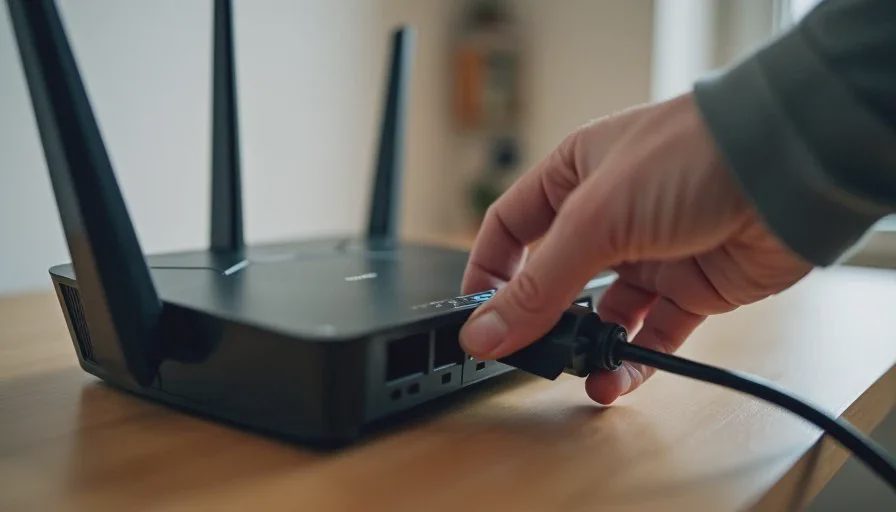
Power-cycling the router clears the temporary state. The device reloads its software, re-establishes the connection with the provider, and begins handing out fresh network addresses to everything in the house. For a large percentage of short-term slowdowns and dropouts, that clean slate is enough to restore normal service for hours or days.
That is why the advice persists. It is quick, it requires no special tools, and it frequently produces an immediate improvement. The improvement is real. It is also often incomplete.
Why the Restart Is Usually Not the Real Fix
If the same problem returns within a few days or weeks, the restart treated a symptom rather than the cause. Common underlying issues include:
Outdated router firmware that contains known stability bugs.
Overheating caused by poor placement (closed cabinet, direct sunlight, stacked on other electronics).
Too many devices competing for limited wireless capacity, especially on the older 2.4 GHz band.
Interference from neighbors’ networks, cordless phones, microwave ovens, or baby monitors.
A failing cable modem or a marginal signal from the internet provider.
A single misbehaving device that repeatedly disrupts the network until it is restarted or removed.
Wi-Fi channels that have become crowded since the router was last configured.
Restarting the router does not update firmware, improve ventilation, reduce the device count, change channels, or repair a failing modem. When the temporary state builds up again, the problem reappears.
The 15-Minute Version
If the internet is acting up right now and you have only fifteen minutes:
Restart the router and the modem (if they are separate devices) by unplugging them for a full sixty seconds.
While they are powered off, restart the one or two devices that were having the most trouble.
Plug the modem back in first, wait for it to fully online, then plug the router back in.
Test the previously problematic devices.
If service is restored, write down the date and the symptom on a note. If the same symptom returns within two weeks, move to the longer troubleshooting steps below.
That short sequence solves many one-off events and creates a record so you can see patterns later.
A Practical Troubleshooting Order for Families
When the restart only buys temporary relief, work through these steps in order. Stop when the problem is resolved. Each step is designed for a non-technical adult.
1. Confirm the Scope
Is the problem affecting every device or only one? Is it only wireless, or does a computer plugged in with an Ethernet cable also fail? Is the internet completely gone, or just slow? The answers immediately narrow the possibilities. A single-device problem is rarely the router’s fault. A complete outage that includes a wired computer points more toward the modem or the provider.
2. Check for Overheating and Placement
Feel the top and sides of the router. If it is uncomfortably hot, move it to a more open location with better airflow. Avoid closed cabinets, direct sun, and stacking it on other warm electronics. Many “mysterious” stability problems disappear after the router is allowed to run cooler.
3. Update Firmware
Log into the router’s administration page (the address is usually on a sticker on the device) and look for a firmware or system-update section. Apply any available update, then restart. Outdated firmware is one of the most common sources of recurring dropouts.
4. Separate the Bands and Reduce Congestion
If the router broadcasts both 2.4 GHz and 5 GHz (or 6 GHz) networks, give them distinct names temporarily. Connect newer devices to the higher band and leave older or distant devices on 2.4 GHz. This simple separation often improves performance more than another restart.
5. Test with the Provider’s Equipment
If you own your own router and the problems continue, temporarily reconnect the provider’s modem-router combination and test for a day. If the problems disappear, the issue is likely inside your own hardware or configuration. If the problems remain, it is time to contact the internet provider and ask them to check the line and the modem.
Time, Cost, Difficulty, and Risk
Time: The initial restart takes five minutes. A full pass through the troubleshooting order above usually takes thirty to sixty minutes spread across an evening.
Cost: Zero dollars for the steps listed. If the router itself is several years old and repeatedly unstable after firmware updates and better placement, a replacement may eventually be warranted, but that is a later decision.
Difficulty: Suitable for any adult who can unplug a device, log into a web page with a password, and follow on-screen menus. No command-line work is required.
Risk: The main risk is changing too many settings at once so that you cannot tell which change helped. Make one change at a time and test.
Who in the household can maintain it? One adult can own the network troubleshooting. A second adult should know how to perform the basic restart and where the modem and router are located.
Common Patterns I See in Real Homes
A family with three school Chromebooks, two phones, and a streaming device experiences slowdowns every weekday around 4 p.m. Restarting the router helps for a few hours. The real issue is simply too many devices doing homework and video at the same time on an older router. Moving the Chromebooks to a guest network and giving the main devices priority on 5 GHz reduces the evening congestion more effectively than daily restarts.
Another household reports that the printer and one laptop drop offline several times a week. The restart brings them back. The router turns out to be sitting on top of a media cabinet with almost no airflow. Moving it six inches into open air ends the dropouts.
A third case involves intermittent complete outages. The restart works, but only for a day or two. The provider’s modem is several years old and failing. Replacing the modem under the provider’s equipment program eliminates the outages.
In each case the restart was a reasonable first response. It was not the permanent solution.
What This Approach Deliberately Avoids
It does not require buying new mesh systems on the first day of trouble. It does not involve advanced channel analysis or packet captures. It does not assume the family needs enterprise-grade equipment. Those steps exist for later if the simple sequence fails. Most household Wi-Fi problems never need them.
How to Know When to Call the Provider or Replace Hardware
After you have:
Confirmed the problem affects multiple devices,
Improved ventilation,
Updated firmware,
Tested with the provider’s equipment,
and the instability continues, it is reasonable to contact the internet provider and ask for a line check. If the provider’s equipment works reliably and your own router does not, replacement becomes a practical next step rather than a guess.
Closing the Loop
Restarting the router is a useful first move because it clears temporary confusion inside a small computer that works hard all day. When the same problem returns, the restart has done its job by showing you that a deeper look is required. Working through scope, heat, firmware, band separation, and provider testing in that order solves the majority of recurring home Wi-Fi issues without specialized knowledge.
Keep a simple note of dates and symptoms. Patterns become visible quickly once they are written down. The network in a busy American household does not need to be perfect. It needs to be stable enough that homework, work, and evening streaming happen without repeated troubleshooting.
The next guide in this series looks at when it makes sense to buy a better router and when the smarter move is simply to call the internet provider. Until then, the next time the internet misbehaves, restart the router, write down what happened, and watch whether the problem returns. That single record is the beginning of a real fix.
Make it boring enough to work.
No comments yet.