Most American families already have photos and documents scattered across phones, laptops, and cloud accounts. What they often lack is a backup system for family photos that survives a lost phone, a failed hard drive, or the day someone accidentally empties the wrong folder. This post describes the exact system I use in my own house in Greensboro, North Carolina, and shows how ordinary households can adapt the same approach.
I am Eric Holt. My household includes Windows laptops, iPhones, an iPad, Sarah’s Android phone, school Chromebooks, Google Photos, iCloud, a Synology NAS, and Tailscale for remote access. We are not a tech-lab family. We are a working household with two kids, a dog, and the same risk of dropped phones and aging laptops that every other family faces. The system below has been running for several years with only minor adjustments.
The goal is simple: keep the family’s photos and important files recoverable without turning backup into a second full-time job.
Why Most Family Backup Attempts Fail
Three patterns appear again and again in the homes I visit.
Everything lives in one cloud account. When that account is locked, locked out, or accidentally wiped, the photos disappear with it.
Someone buys an external drive, copies files once, and never checks it again. The drive fails or is left behind during a move.
The system is so complicated that only one person understands it. When that person is unavailable, no one else can restore a file.
A workable backup system for family photos has to survive those three failure modes. That is why the classic 3-2-1 rule still matters, even when the language around it is simplified for ordinary households.
The 3-2-1 Rule Without the Enterprise Vocabulary
In plain terms the rule means:
Three copies of the data.
Two different types of storage.
One copy stored off-site or offline.
In our house those three copies look like this:
The working copies on our phones and laptops (Google Photos, iCloud Photos, and local Documents folders).
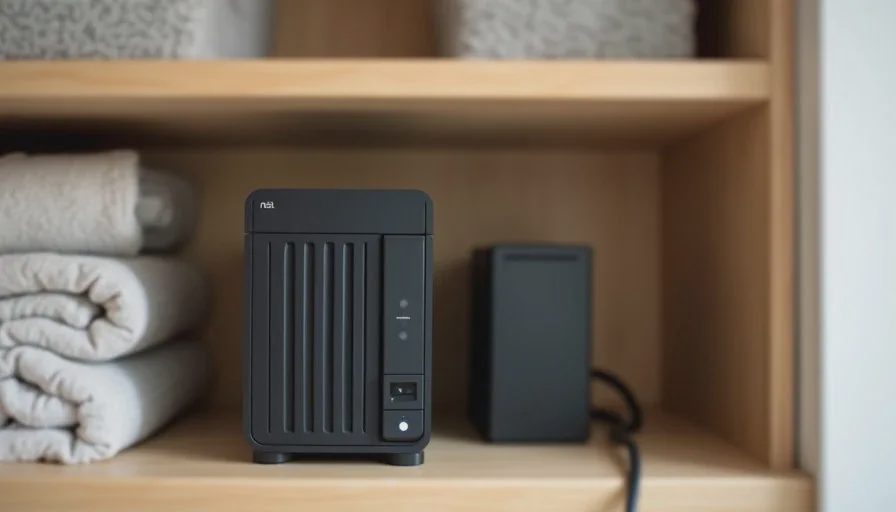
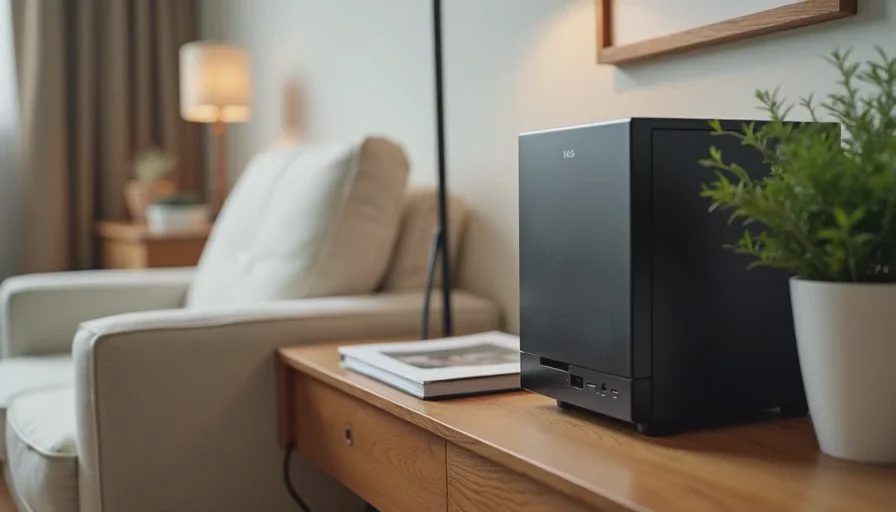
A second copy on a Synology NAS sitting in a closet at home.
A third copy that leaves the house—either through a cloud backup of the NAS or an encrypted external drive stored at a relative’s house.
Two different types of storage means we do not rely only on hard drives or only on cloud services. The NAS uses hard drives; the off-site copy uses either cloud or a physically separate drive. One copy is off-site so a house fire or theft does not take everything.
The Exact System Running in Our House
Daily Automatic Collection
Phones are the main camera in our family. Both iPhone and Android are set to upload new photos automatically:
iPhones use iCloud Photos.
Sarah’s Android phone and my own testing devices use Google Photos.
We accept that this creates some duplicates. The alternative—manually choosing one cloud and forcing every device into it—creates more friction than the duplicates cost us. A later guide covers how we periodically clean those duplicates without losing the original files.
Nightly Local Backup to the NAS
The Synology NAS sits in a closet on an uninterruptible power supply. Each night it pulls:
New photos from the Google Photos and iCloud accounts we have authorized.
The Documents and Desktop folders from the two main Windows laptops.
A small set of shared family folders that contain scanned insurance cards, birth certificates, and school records.
The NAS keeps multiple versions so a file overwritten by mistake can still be recovered for a limited time. We do not keep infinite history; thirty to ninety days of versions is enough for ordinary household mistakes.
Off-Site Copy
Once a week the NAS encrypts and sends a copy of the most important shared folders to a cloud backup service. In addition, roughly twice a year I update an encrypted external drive and leave it at my parents’ house. That drive is the “break glass” copy if both the house and the cloud account become unavailable at the same time.
Remote Access When Needed
Tailscale lets me reach the NAS securely from outside the house without opening ports on the home router. This is useful when a laptop fails while we are traveling and we need a specific document. It is not required for the backup system itself; it is simply convenient.
Time, Cost, Difficulty, and Risk
Time: Initial setup took one Saturday afternoon plus a few evenings of testing. Ongoing maintenance is about fifteen minutes a month to confirm the last backup completed and to glance at free space on the NAS.
Cost: The NAS and drives were a one-time purchase several years ago. Cloud backup of the critical folders costs less than ten dollars a month. Families who prefer not to buy a NAS can substitute a couple of external drives and still meet the 3-2-1 rule at lower cost.
Difficulty: The daily photo uploads require almost no thought. Setting up the NAS the first time needs patience and a willingness to follow step-by-step documentation. Once running, the system is quiet.
Risk: The largest risk is believing the system is finished after the first successful backup. Periodic restore tests are the only way to know the copies are actually usable.
Who in the household can maintain it? I am the primary maintainer. Sarah knows where the NAS sits, how to tell whether the status light is normal, and where the encrypted external drive is stored when it is at home. That is enough for short-term recovery if I am unavailable.
A Simpler Version for Households That Do Not Want a NAS
Not every family needs or wants a network-attached storage device. A perfectly workable 3-2-1 system can be built with tools most people already own:
Keep the working copies on phones and computers (Google Photos + iCloud + local folders).
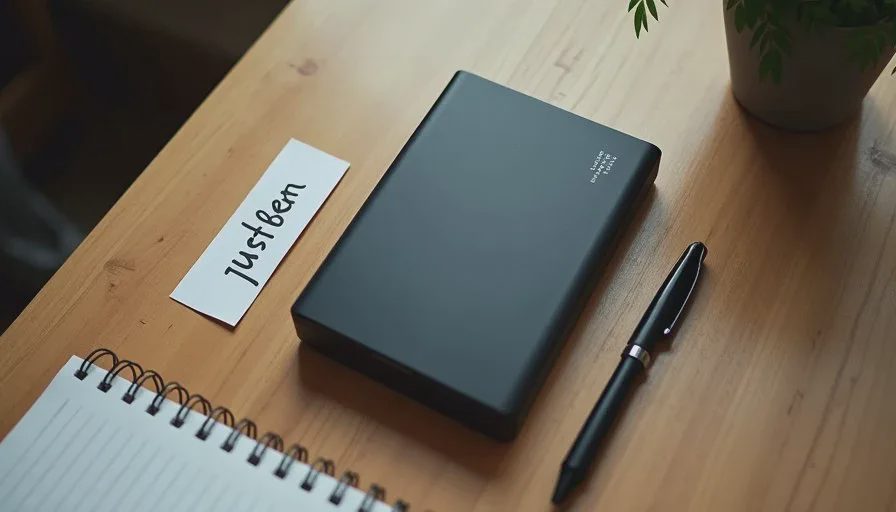
Once a month, copy the photo libraries and important documents to a dedicated external hard drive. Label it clearly and store it in a closet.
Once a quarter, update a second external drive and keep that one at a relative’s house or in a safe-deposit box.
This version costs less money and requires less technical setup. It does require calendar reminders, because the copies are manual. Families with very large photo libraries or multiple computers usually grow tired of the manual step and eventually move to something more automatic. Both approaches satisfy the 3-2-1 rule.
How We Test That the System Still Works
Every few months I perform a short restore test:
Pick three random photos from different years.
Delete or rename the local copies (or simply pretend they are gone).
Restore them from the NAS and confirm they open correctly.
Once a year I also restore a small folder from the off-site cloud copy or the external drive.
The test takes less than twenty minutes. Finding a problem during a calm Saturday is far better than discovering it on the day a laptop dies.
What This System Deliberately Does Not Try to Do
It does not attempt to keep a perfect, duplicate-free photo library in one place. It does not back up every application setting or every browser bookmark. It does not replace the need for a written list of critical accounts and recovery methods. Those tasks belong in other guides.
The system’s only job is to make sure the family’s photos and a defined set of important documents can be brought back after common household failures.
Adapting the System to Your Own House
Start with the three questions that matter most:
Where do new photos land today?
What is the second place those photos could live?
What is the third place that is not inside the same house?
Answer those three questions honestly, then build the smallest system that satisfies them. You can always add automation later. A simple system that is actually running beats a sophisticated system that was abandoned after the first month.
If you already use Google Photos and iCloud, keep them. Add a second local copy and an off-site copy. That single improvement moves most families from “hoping the cloud is enough” to a real backup system for family photos.
Closing Notes from Our Closet
The NAS in our closet is not glamorous. It hums quietly, the status light stays steady, and months can pass without anyone thinking about it. That is the point. A backup system for family photos should be boring enough that it survives busy school seasons, work travel, and the ordinary chaos of a house with children and a dog.
The next post in this series looks at the specific problem of duplicate memories across Google Photos and iCloud and shows a practical way to reduce the clutter without deleting originals. Until then, pick one folder of important photos or documents and make sure a second copy exists somewhere else. That is how the system begins.
Make it boring enough to work.
No comments yet.