Most American families end up with photos in both Google Photos and iCloud. One parent prefers Android, the other prefers iPhone, the kids switch devices over the years, and suddenly the same birthday party or soccer game exists in two clouds, sometimes three. The result is duplicate memories that waste storage, confuse searches, and make it harder to find the one good frame when you actually want it. This guide explains how we handle the problem in our own house and the practical steps any mixed-device family can take.
I am Eric Holt. Our Greensboro household runs iPhones, an Android phone, Windows laptops, Google Photos, and iCloud Photos side by side. We also keep a local copy on a Synology NAS. We have never forced every photo into a single cloud, because that fight usually costs more energy than the duplicates themselves. Instead we accept a certain amount of overlap and use a few low-effort habits to keep the clutter from growing forever.
The goal is not a perfect, duplicate-free library. The goal is a family photo system that stays usable year after year.
Why Duplicates Appear in the First Place
Three common situations create the overlap:
One adult’s phone uploads to iCloud while the other adult’s phone uploads to Google Photos. The same event is captured by both phones.
A photo is shared via text or AirDrop and then saved again by the recipient, creating a second copy in a different library.
Old devices are backed up to one service while new devices default to another, so historical photos slowly diverge.
None of these situations is a technical failure. They are the normal result of a mixed-device household living ordinary life. Trying to eliminate every duplicate at the source usually requires rules that no busy family can keep.
The 15-Minute Version
If you have only fifteen minutes today:
Open Google Photos on one device and iCloud Photos on another (or on the web).
Pick a single recent event—last weekend, a birthday, a school performance.
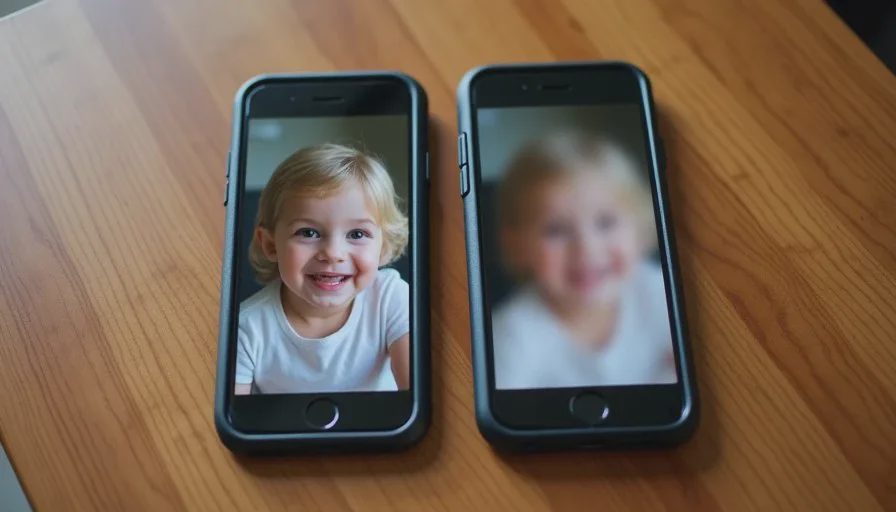
Scan both libraries for that event and note roughly how many near-duplicates you see.
Decide which library will be the “primary” place for new photos of that type of event going forward.
Write the decision on a note and stop. Do not start deleting yet.
That short look gives you a realistic sense of the scale of the problem in your own house before you invest more time.
The Approach We Use in Our House
We treat the two clouds as complementary rather than competitive.
Primary Capture Rules
iPhones continue to use iCloud Photos because that is the path of least resistance for those devices. Sarah’s Android phone and any testing devices continue to use Google Photos. We do not disable either upload. Trying to force every camera roll into one service created more missed photos than it prevented duplicates.
Periodic Deduplication Pass
Roughly three or four times a year we run a focused cleaning session on one event or one month at a time. We never attempt to clean the entire library in one sitting. The session has three rules:
Only delete a photo from the secondary library after confirming a clear copy exists in the primary library or on the NAS.
When two versions differ slightly (one is a burst frame, one is edited), keep the version that is most useful and remove the other from the secondary location.
Stop after thirty to forty-five minutes even if the month is not finished. Momentum matters more than completeness.
Local Safety Copy
The NAS pulls new photos from both Google Photos and iCloud on a regular schedule. That local copy is the tie-breaker. If we ever delete the wrong version from a cloud, the NAS still holds the file. This single habit makes the cleaning sessions low-risk.
Time, Cost, Difficulty, and Risk
Time: The initial decision about primary libraries takes fifteen minutes. Ongoing cleaning sessions are thirty to forty-five minutes, three or four times a year. No daily work is required.
Cost: Most families already pay for at least one of the two cloud services. The NAS is optional; external drives can serve the same safety-copy role at lower cost.
Difficulty: Suitable for any adult who can open both photo apps and compare two images side by side. No special software is required for the basic method.
Risk: The main risk is deleting the only good copy of a photo. Keeping the NAS or an external-drive copy as the permanent original removes most of that risk.
Who in the household can maintain it? One adult can own the cleaning sessions. The other simply needs to know which library is considered primary for new photos so that sharing and saving habits stay consistent.
Practical Habits That Reduce Future Duplicates
A few small habits limit the growth of new duplicates without requiring constant vigilance.
When both parents photograph the same event, one person can be designated the “official” shooter for that hour. The other can still take pictures, but the family knows which library will receive the cleaned set later.
When a photo arrives by text and is worth keeping, save it only to the primary library for that type of image rather than to both.
Once a year, export a full month of photos from the secondary library and confirm they already exist on the NAS or in the primary library before removing them from the cloud. This batch approach is faster than hunting individual duplicates.
Alternative Approaches for Different Households
Some families choose one cloud as the permanent home and slowly migrate everything else into it. That path works when one adult is willing to do the migration work and the family is willing to change capture habits on every device. It is cleaner long-term and more work up front.
Other families keep both clouds and never delete duplicates. They simply accept the extra storage cost and use search and albums to find what they need. This is the lowest-effort option and is perfectly reasonable when storage is inexpensive and the family rarely looks at older photos.
A third path uses a dedicated photo-management application on a home computer to scan both libraries, surface duplicates, and help decide which copy to keep. These tools can save time for very large libraries, but they add another piece of software to maintain. We have not found them necessary for a household of our size.
A Real Example from Our Living Room
Last winter we noticed that the same Christmas morning sequence existed in both iCloud and Google Photos, plus a few frames that had been texted and saved again. During a forty-minute evening session we compared the two libraries side by side, kept the sharper versions in iCloud (our primary for that year), confirmed the NAS already held everything, and removed the secondary copies from Google Photos. Storage dropped by several gigabytes. More important, the Christmas album became easier to open without scrolling past near-identical frames. We stopped when the timer went off and left the rest of December for another evening. The unfinished portion did not create any problems.
That pattern—small, time-boxed, low-risk cleaning—has proven more sustainable than any ambitious “fix the entire library this weekend” plan.
What This Method Deliberately Does Not Try to Do
It does not produce a single master library that contains every photo exactly once. It does not require every family member to change phones or cloud accounts. It does not promise that new duplicates will never appear. Those goals are either unrealistic for mixed-device households or cost more energy than they return.
The method’s only job is to keep the growing pile of duplicate memories from making the libraries unpleasant to use, while ensuring that no original is ever lost.
How to Begin in Your Own House
Start with the fifteen-minute survey of one recent event. Then decide which library will be primary for new photos of that type. Write the decision down. The next time you have thirty quiet minutes, clean just that one event, confirming a safety copy exists before you delete anything. Repeat when the clutter starts to bother you again. There is no requirement to finish the entire history.
Google Photos and iCloud can coexist peacefully in a family photo system. The duplicates are not a crisis. They are simply a signal that the household uses more than one kind of device. A few deliberate habits turn that signal into a manageable background detail instead of a permanent source of digital clutter.
The next guide in this series looks at what happens to family photos when the original owner is no longer around to manage them. Until then, open both libraries, pick one recent event, and notice how many near-duplicates you already have. That single observation is the start of a calmer system.
Make it boring enough to work.

No comments yet.