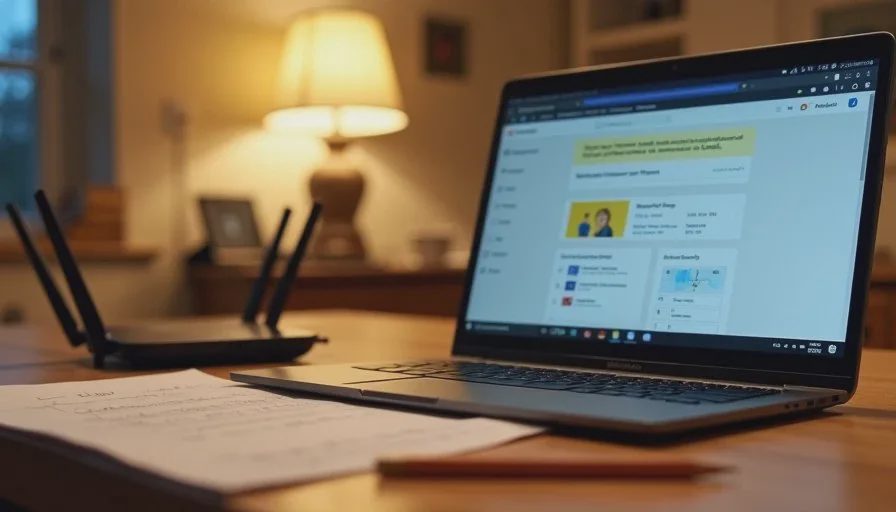
School Chromebooks arrive in American homes every August and September with little instruction beyond “connect to Wi-Fi and log in with the student account.” For many families the device then becomes a recurring source of evening friction: it will not stay connected, it cannot reach the printer, it runs slowly when three other people are online, or it suddenly cannot open the required classroom site. This guide gives parents a clear, low-drama way to make the Chromebook a reliable homework tool without turning the home network into a second job.
I am Eric Holt. Our household has lived through multiple school years with Chromebooks alongside iPhones, an Android phone, Windows laptops, and a single shared printer. I have also helped many families reduce the nightly “the Chromebook isn’t working” conversations. The approach below favors simple separation and clear ownership over complex parental-control suites or whole-home network redesigns.
The goal is homework that can be finished without the network becoming the main obstacle.
Why School Chromebooks Behave Differently from Family Devices
Chromebooks issued by schools are managed devices. They carry school accounts, school policies, and often school-installed extensions or filtering. They are not full members of the household’s digital life in the same way a parent’s laptop or a personal tablet is. Treating them as ordinary family devices is the most common source of repeated problems.
Three practical consequences follow:
They should usually join a guest or student-specific Wi-Fi network rather than the primary family network.
They should not be expected to print directly to the home printer in most cases.
Their software updates and policy changes are controlled by the school, not by the parent.
Once those three realities are accepted, the remaining friction becomes manageable.
The 15-Minute Version
If you have only fifteen minutes before homework starts:
Confirm the Chromebook is on the correct Wi-Fi network (preferably a guest or student network if you have one).
Restart the Chromebook completely (power off, wait ten seconds, power on).
Restart the home router if the Chromebook still cannot reach the required classroom site.
If printing is needed, share the document to a parent’s phone or laptop and print from there.
Write down what worked so the same sequence can be repeated tomorrow if necessary.
That short sequence solves the majority of same-evening crises and creates a small record for later.
A Practical Home Setup for School Chromebooks
1. Give the Chromebook Its Own Network Lane
If your router supports a guest network, put the school Chromebooks on it. The guest network provides internet access while keeping the devices from seeing the family printer, shared folders, or other personal devices. This separation reduces accidental interference and prevents school-managed devices from becoming tangled in home sharing settings.
If a guest network is not available, create a clearly named primary network and reserve it for trusted family devices. Connect the Chromebooks and accept that they will share the same airspace; then focus on the other habits below.
2. Treat Printing as a Parent-Assisted Task
Most school Chromebooks are not configured for easy home printing, and forcing the issue often consumes more time than it saves. The reliable pattern in many households is:
Student creates or opens the document on the Chromebook.
Document is shared (email, cloud link, or nearby-share) to a parent’s phone or laptop.
Parent prints from the device that already knows the home printer.
This workflow feels indirect at first and quickly becomes the path of least resistance. Keep a short written note near the printer so every adult knows the current method.
3. Control Bandwidth Competition During Homework Hours
When multiple people stream, game, or join video calls at the same time a Chromebook is trying to upload a large assignment, the Chromebook often loses. Simple mitigations include:
Asking other household members to pause high-bandwidth activities for the twenty to thirty minutes of heavy homework upload.
Moving the Chromebook physically closer to the router during critical work.
Using the 5 GHz band (if available and the Chromebook supports it) for the student device while leaving older or distant devices on 2.4 GHz.
These are social and placement fixes more than technical ones, and they work in the majority of homes.
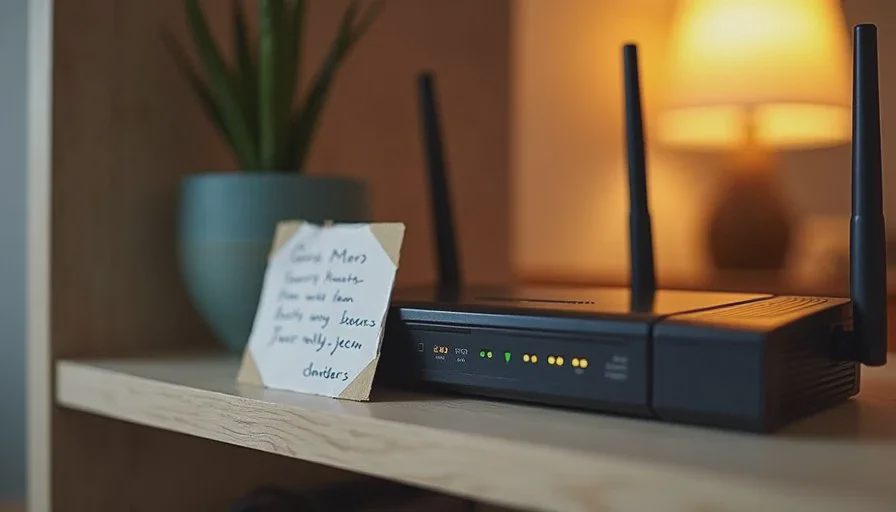
4. Keep a Written “Chromebook First-Aid” Card
On a single index card or sheet in the kitchen or homework area list:
Correct Wi-Fi network name and password for the Chromebook.
How to restart the Chromebook fully.
How to restart the router.
The current printing workaround.
The school IT help contact or portal for device-policy problems.
When the same problem appears for the third time, the card prevents everyone from reinventing the sequence under time pressure.
Time, Cost, Difficulty, and Risk
Time: Initial setup of a guest network and the first-aid card usually takes thirty to forty-five minutes. Ongoing maintenance is only the occasional update of the card when the printing method or network name changes.
Cost: Zero dollars if the existing router already supports a guest network. No additional parental-control subscription is required for the approach described here.
Difficulty: Suitable for any adult who can log into the home router’s administration page and write a short checklist. No command-line work or advanced networking knowledge is needed.
Risk: The main risk is over-complicating the solution with multiple filtering apps or aggressive device-management tools that then require constant maintenance. The second risk is assuming every Chromebook problem is a home-network problem when some are school-policy or account problems.
Who in the household can maintain it? One parent can own the network side and the first-aid card. The other adult and older students should know how to follow the card so evening homework does not depend on a single person’s presence.
Common Problems and the Fastest Reliable Fixes
Chromebook connects to Wi-Fi but cannot reach classroom sites.
Restart the Chromebook fully. If the problem remains, restart the router. If it still remains, test whether a parent’s phone on cellular data can open the same site; if it can, the issue is likely on the home network or the school filter. If it cannot, the issue is likely on the school side or the student’s account.
Chromebook is extremely slow only during evening homework time.
Check how many other devices are actively streaming or downloading. Temporarily pause the heaviest users and move the Chromebook closer to the router. If the pattern repeats daily, consider a simple schedule agreement for high-bandwidth activities.
Chromebook cannot print.
Default to the share-to-parent-device method. Investing time in native Chromebook printing is rarely worth it unless the school specifically supports and documents a home-printing solution.
Chromebook keeps forgetting the home Wi-Fi password.
Forget the network on the Chromebook, restart the device, and rejoin. If the problem recurs, confirm that the router is not set to rotate the guest password automatically.
Alternative Approaches for Different Homes
Some families prefer to keep Chromebooks on the main network and rely on the router’s device list to give them lower priority. That can work when the household is small and the router has straightforward quality-of-service controls. Other families place a simple mesh node or access point nearer the homework area so the Chromebook has a stronger signal without changing network names. Both are reasonable once the basic separation and first-aid habits are in place.
Aggressive third-party parental-control systems are rarely necessary for school-managed Chromebooks because the school already applies filtering. Adding another layer often creates login conflicts and extra support burden.
A Real Household Example
A family with two school-age children was restarting the router almost every school night. The Chromebooks shared the main family network with phones, a streaming device, and a work laptop. We moved both Chromebooks onto the existing guest network, wrote a four-line first-aid card, and agreed that printing would go through a parent’s phone. The nightly router restarts stopped. Homework still had ordinary content struggles, but the network itself ceased to be the main obstacle. The change took less than an hour and required no new equipment.
The same pattern appears across many of the households I work with: once the Chromebook is treated as a managed guest rather than a full family device, the recurring friction drops sharply.
What This Guide Deliberately Avoids
It does not recommend buying a new mesh system as the first response. It does not require installing additional monitoring software on school devices. It does not assume every parent needs to learn advanced router configuration. Those steps exist for later if the simple sequence fails. Most families never need them.
Closing the Loop
School Chromebooks are temporary, managed tools that need reliable internet and a clear path for the occasional printed page. Giving them a separate network lane, treating printing as a parent-assisted step, reducing bandwidth competition during critical windows, and keeping a short written first-aid card solves the majority of home-related problems.
Start with the fifteen-minute evening sequence the next time the Chromebook misbehaves. Then, on a calmer day, move the device to a guest network if you have one and write the four-line card. Those two actions turn the Chromebook from a nightly variable into a predictable homework device.
The next guide in this series looks at passkeys without the hype and how ordinary households can set them up. Until then, put the Chromebook on the guest network if you can, write the first-aid card, and let the evening homework proceed with one less source of friction.
Make it boring enough to work.
No comments yet.